
One tag. A different message every scan.
A sequence steps your tag through a planned series of actions — a welcome drip, daily tips, a room-by-room tour. Each scan shows the next step. This guide builds one from start to finish.
What a sequence does — and when to use one
A sequence is a list of actions that play one after the next. Each scan of the tag shows the next step instead of the same thing. Think of a deck of cards face-down: every scan turns the top card.
Patterns that work well:
- The Welcome Drip. Day one: welcome and check-in details. Day two: the best coffee nearby. Day three: dinner picks. Day four: checkout reminder.
- The Daily Tip. A different local tip, quote, or fact every visit — great where the same people scan again and again.
- The Property Tour. Step 1: the coffee maker. Step 2: the thermostat. Step 3: the firepit. Guests advance at their own pace.
- The Surprise. Random mode — every scan picks a step at random. Mystery recommendation, anyone?
Plan your sequence before you build it
Three decisions to make on paper first:
- The steps, in order. Each step is one of your Saved Actions — a message, a link, a contact card. The same action can appear more than once.
- What happens at the end. Stop on the last step? Start over? Never repeat? That's the mode, in Step 4.
- Whether every phone shares one position or gets its own. That's progress tracking, in Step 5.
A worked example — a 4-day welcome drip
- Day 1 — welcome and check-in instructions
- Day 2 — best coffee within walking distance
- Day 3 — our favorite dinner spots
- Day 4 — checkout reminder and review request
Create the sequence
Go to Automation, then the Sequences tab
In the dashboard at app.tappedtags.com, open Automation in the left navigation and select the Sequences tab.
Click "+ New sequence"
The sequence editor opens. Most options have sensible defaults.
Name it
For your reference only — visitors never see it. Something like "Cedar Hollow welcome drip."
Choose a mode
The mode decides what happens when a scanner reaches the end of the list. The editor shows a short description under whichever mode you pick.
| Mode | What it does | Best for |
|---|---|---|
| Linear | Steps advance in order, then stop — the last step keeps showing. | Journeys with a natural resting place — a welcome drip that ends on the checkout reminder. |
| Loop | Steps advance in order, then start over from step 1. | Endless rotations — daily tips, rotating quotes, "something new every visit, forever." |
| One-shot | Each step shows one time — after the last step, the sequence goes quiet. | Reveals and one-time experiences that shouldn't be replayed. |
| Random | Every scan picks a step at random. | "Surprise me" tags — a random recommendation each scan. |
Choose progress tracking
This answers one question: when two different phones scan the same tag, do they see the same step or their own?
| Tracking | What it does |
|---|---|
| Everyone shares | One shared pointer. Any scan advances it for everybody — if one guest just saw step 2, the next scanner sees step 3. |
| Per device | Each phone keeps its own position. Every guest starts at step 1 and moves through the sequence independently. |
For most hosts, per device is the right answer — a guest shouldn't land on step 3 because the cleaner scanned earlier. Use "Everyone shares" when you actually want one rhythm for everyone, like a household daily-quote tag.
Add your steps from Saved Actions
Add each step
Use the "Add step" picker to pull from your Saved Actions library — every action you've built, whether from a tag's wizard or the library's own "+ New" button. Pick the action for step 1, then keep adding until your plan is in.
Put them in order
Use the up/down arrows on each step row to move it. Steps run top to bottom, numbered for you.
Reuse freely
The same action can appear more than once in a sequence — a "check the house rules" reminder can show up on day 1 and again on day 3.
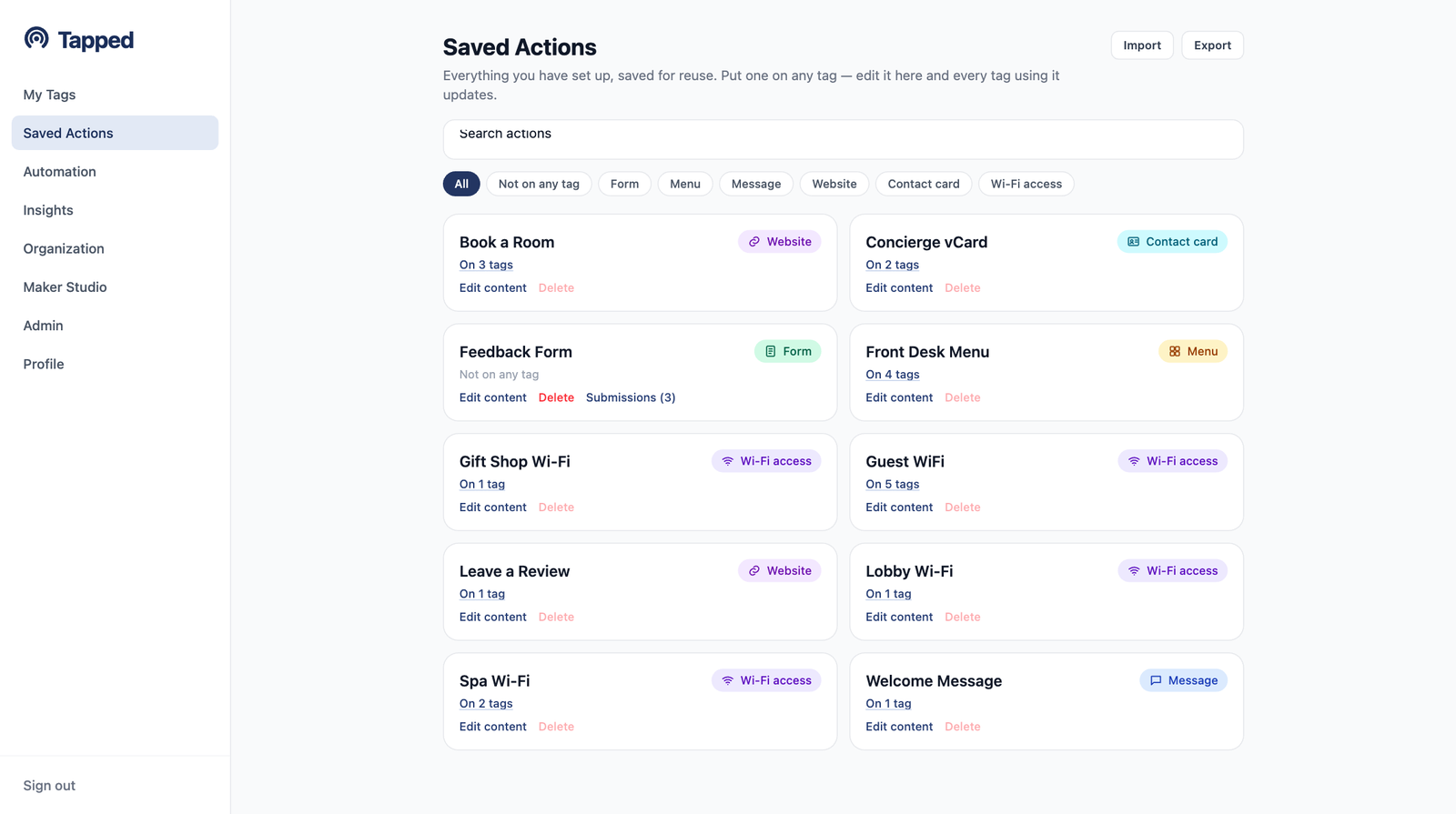
Saved Actions — every action you've built, ready to become a step.
Optional: set an advance limit
Without a limit, a curious guest could scan five times in a row and burn through your whole welcome drip in thirty seconds. Open the "Advance limit" section and switch it from Off to "Limit advances" to cap how fast the sequence moves — for example, one advance per one-day window.
With a once-per-day limit, extra scans re-show the current step instead of advancing. Your guest sees today's message again, not an error — and tomorrow's scan moves them forward.
Save and assign to a tag
Save the sequence
Click Save sequence. The sequence appears as a card under Automation, ready to use.
Open the tag and click "Change what it does"
Go to My Tags, open the tag, and hit the big button. You'll see "How should this tag decide what to show?"
Pick "Changes with each scan"
That's the sequence option. Choose your sequence from the list that expands and it's assigned right away — or use the "New sequence…" link in the same panel to build and assign one without leaving the tag page.
Test and edit
Scan your tag a few times
Each scan should show the next step (unless an advance limit is holding it). After the last step, behavior follows your mode: Linear rests on the final step, Loop starts over, One-shot is done, Random keeps surprising.
If a step looks wrong
Open the sequence under Automation, fix the step or the underlying saved action, and save. The next scan shows the change — on every tag using the sequence.
A few ideas for once you're comfortable
- Point a menu button at content that changes daily by pairing it with a sequence-driven tag.
- Use a schedule to switch the same tag between a sequence in the morning and a menu in the evening.
- Add one of the newer action types — like a coupon or a review-router step — into the rotation.
- Watch Insights to see how far guests actually get through your drip.